Clean Truck Check Referee User Guide
About Us
The Clean Truck Check Referee offers services for cited vehicles or vehicles requiring unique services directed by CARB.
Welcome! This guide will help you log in, update your password, and schedule your appointment in just a few simple steps. Your account is automatically created and verified once a referee approves your requested service in the CTC-VIS portal.
Part 1: Login & Password Setup
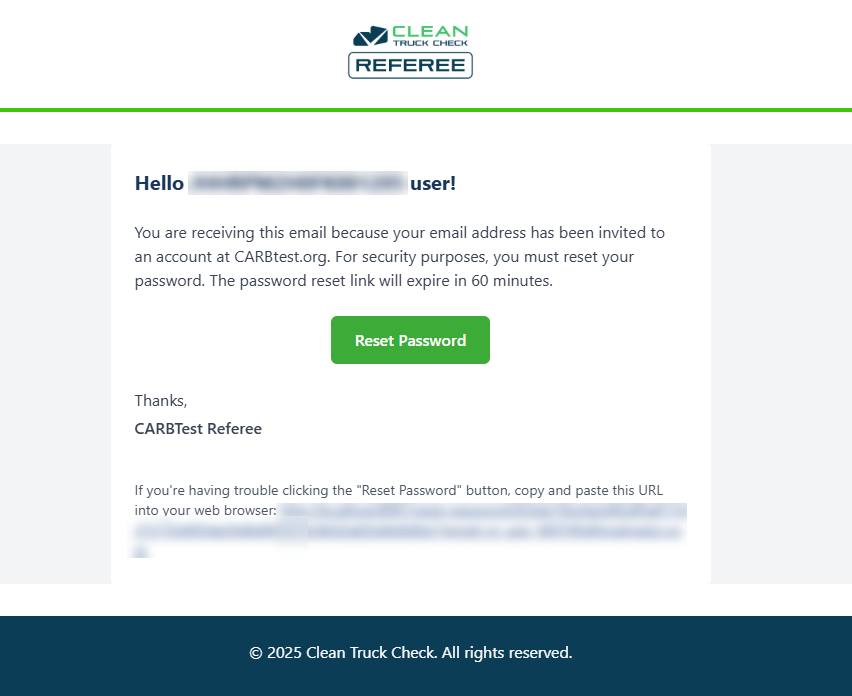
Screen 1 – Email Invitation
- You'll receive an email from carbtest.org.
- The email will ask you to reset your password.
- It includes a one-time link to reset your password.
-
Click the link in the email with the subject line
“CARBTest Referee: User Added”
to go to the password reset page.
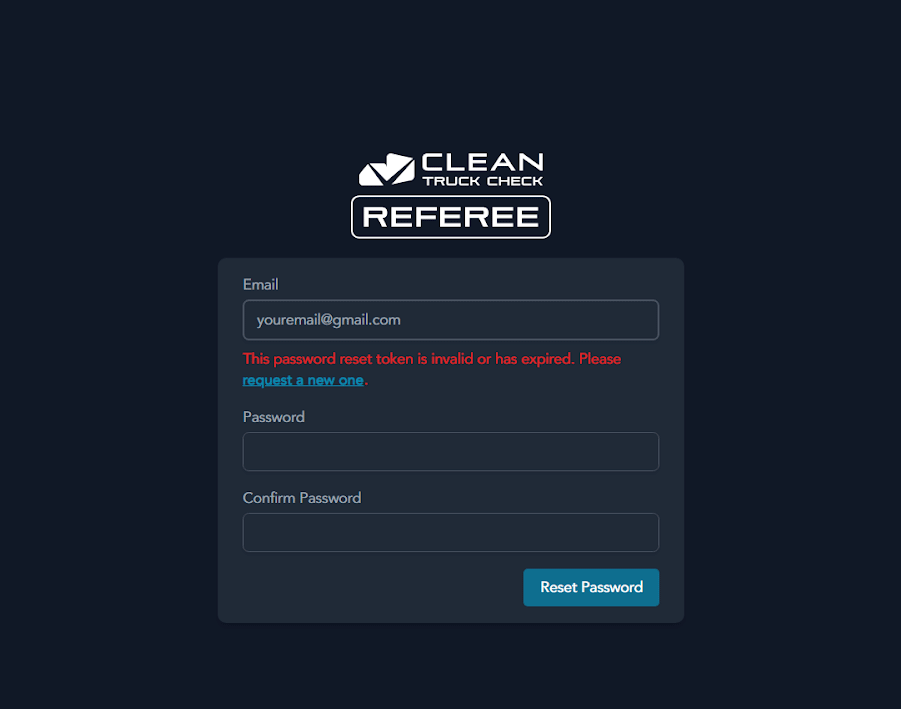
Screen 2 – If Your Verification Email Has Expired or Enter New Password
- If your Password Reset Token is valid, you may enter your new password 2 times, then Click "Reset Password".
-
If your
Password Reset Token is invalid,
you'll be asked to
request a new password reset token
. Click "request a new one".
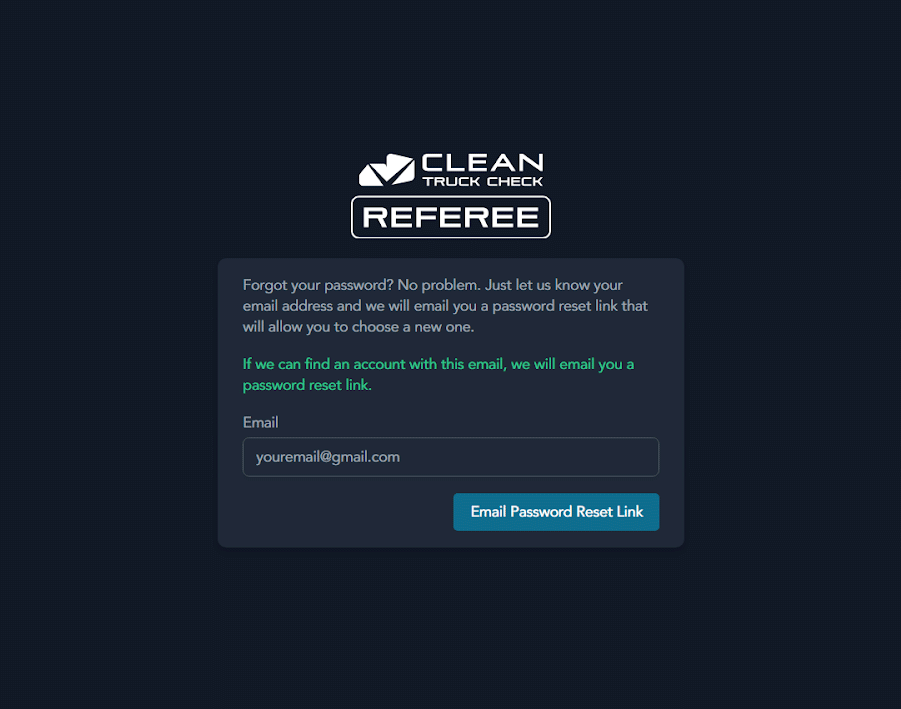
Screen 3 – Password Reset (If you request a new password reset token email)
- Please ensure admin@carbtest.org is added to your contact list or whitelisted to ensure you receive the email.
- Enter your exact e-mail address to request a new password reset email.
-
The page will state,
"If we can find an account with this email, we will email you a password reset link"
.
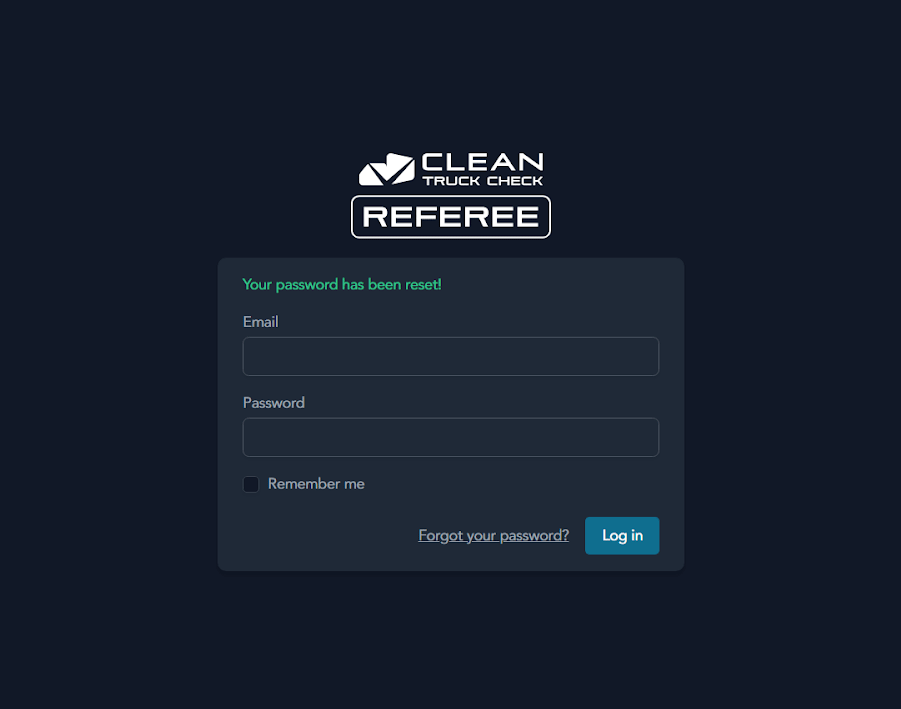
Screen 4 – Password Updated
- You'll see a message that your password has been successfully updated.
-
You'll be redirected to your
Login form.
Part 2:
Dashboard Access
Screen 1 – Dashboard Calendar
- After login, you'll automatically land on your Dashboard at https://carbtest.org/dashboard.
-
Here, you'll see your
calendar view
for scheduling and managing appointments.

Part 3:
Scheduling an Appointment
Screen 1 – Scheduling Email
-
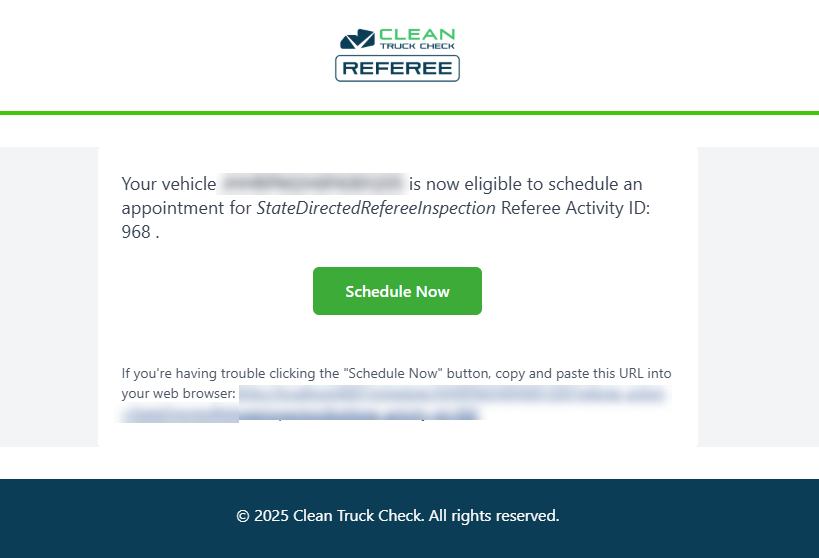
You'll get another email when it's time to schedule.
-
This email has a link that takes you straight to the scheduling page.
- Click the link in the email.
-
See the scheduling button below
Screen 2 – Schedule Page
-
Your VIN should be pre-populated from the link. Please carefully read the on-screen
instructions.
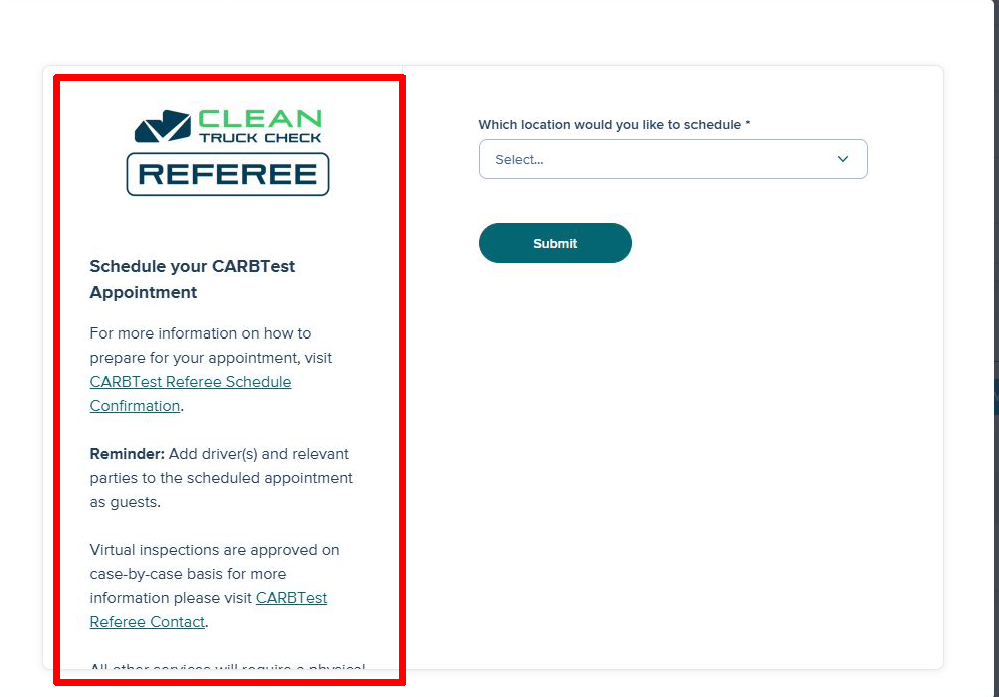
- This page shows the appointment request form.
- Click the large orange “Schedule Now” button to proceed with scheduling.
Screen 3 – Select Location
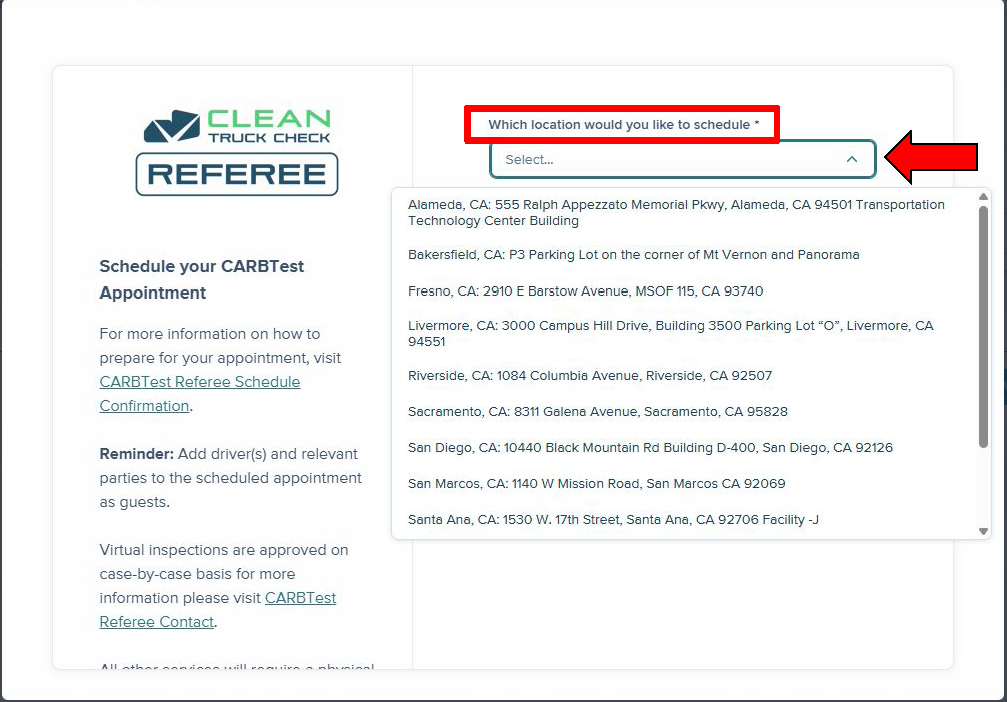
- Under "Which location would you like to schedule", Click the dropdown.
-
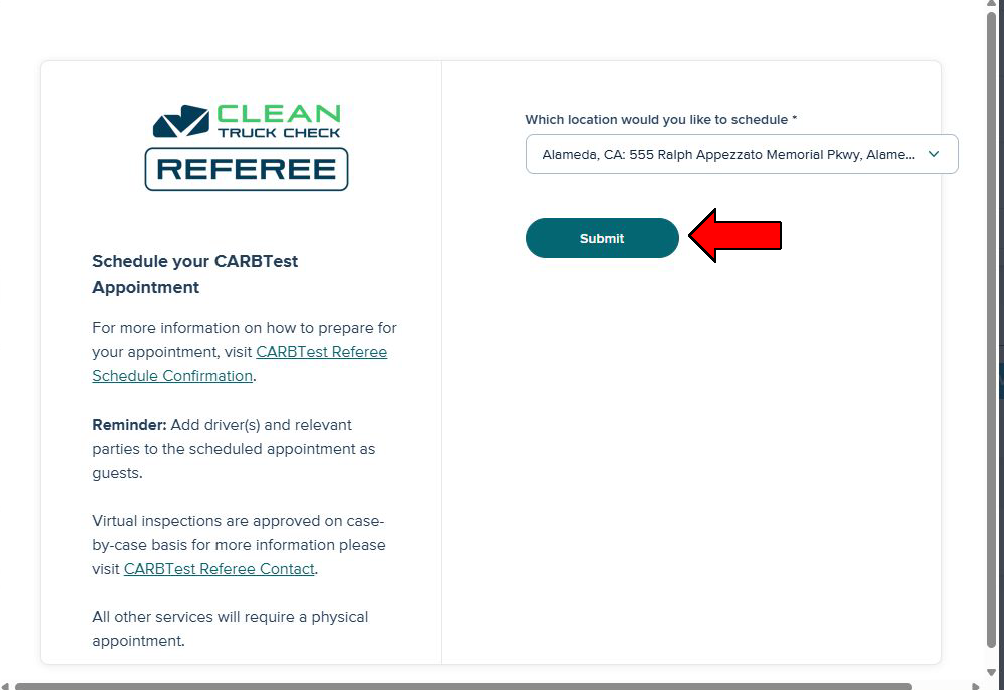
Choose the
location
where you'd like your inspection/appointment, then click the "Submit" button.
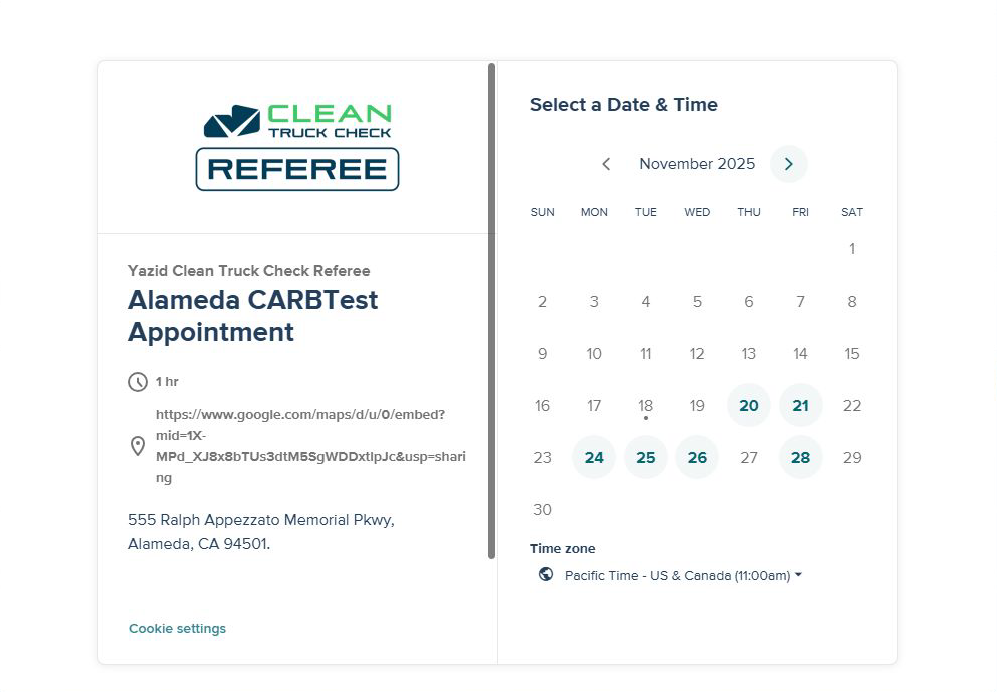
Screen 4 – Check Calendar
- A calendar will appear with available dates and times.
-
Select the date and time that works best for you.
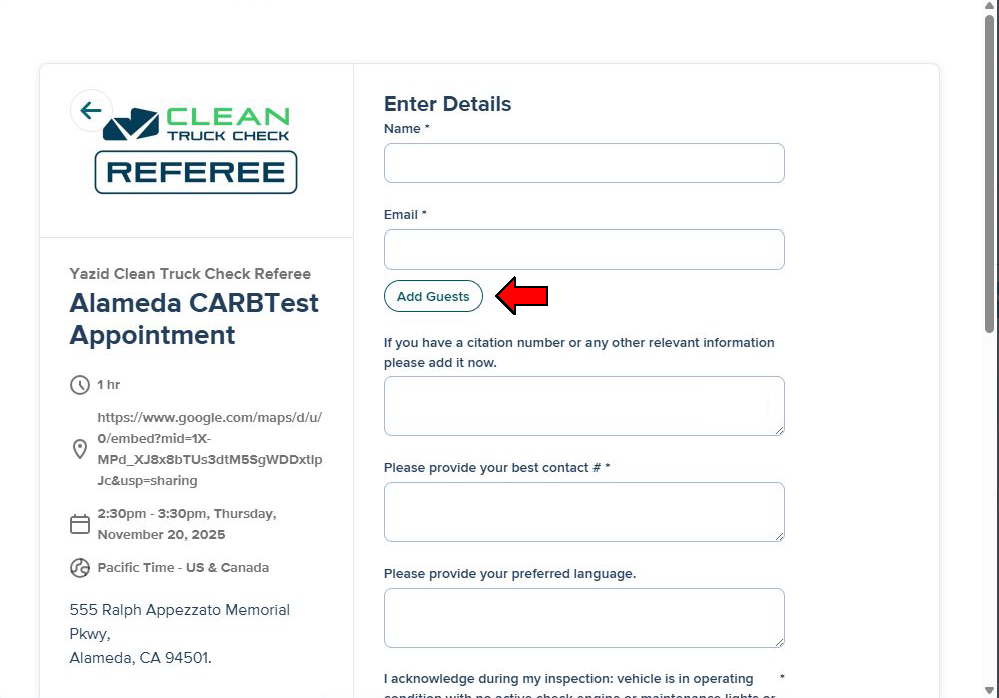
Screen 5 – Fill Out Form
- Provide any required details (name, contact info, or notes).
- Double-check the information.
-
Click “Add Guests” button if you need to add the driver or other relevant contacts to
the appointment confirmation and reminder emails
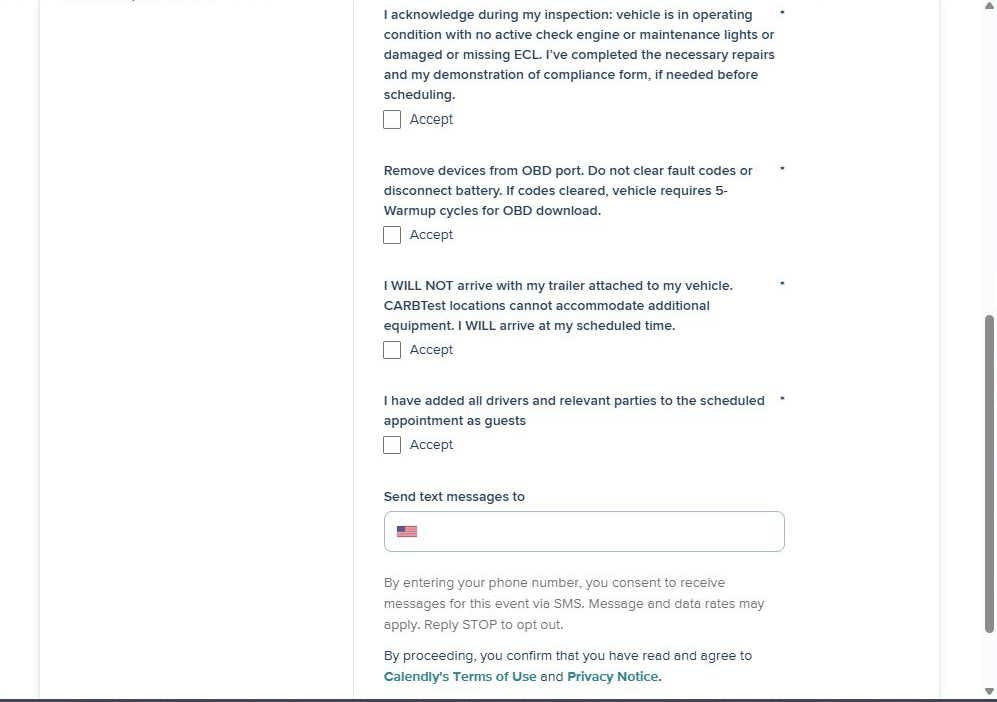
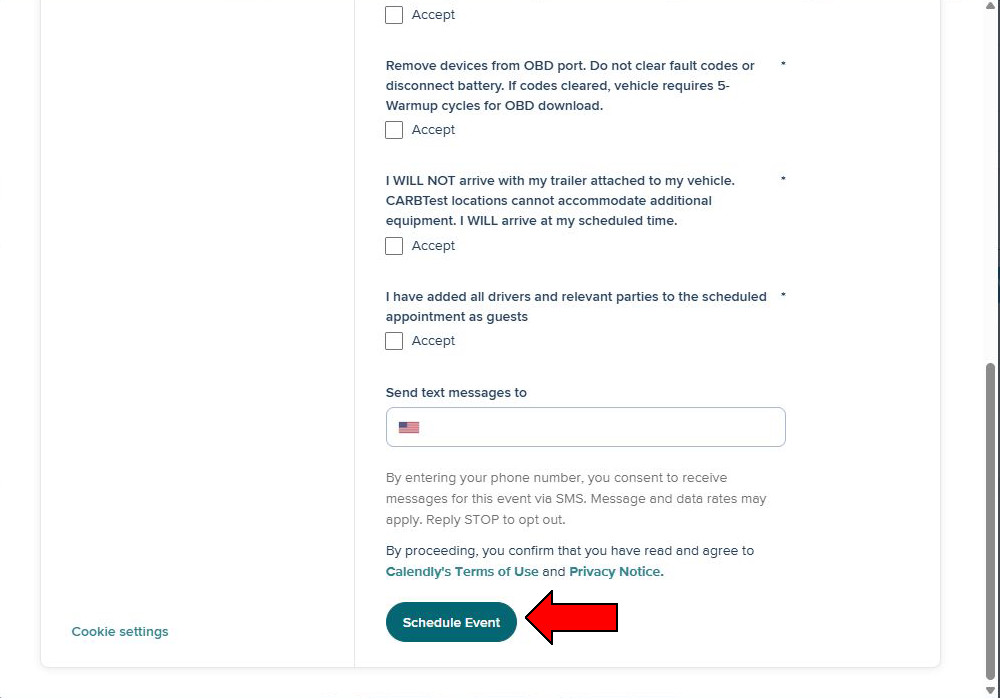
Screen 6 – Submit
- Once all fields are complete, click Schedule Event .
- You'll receive a confirmation email with your appointment details.
-
Please carefully review the required fields
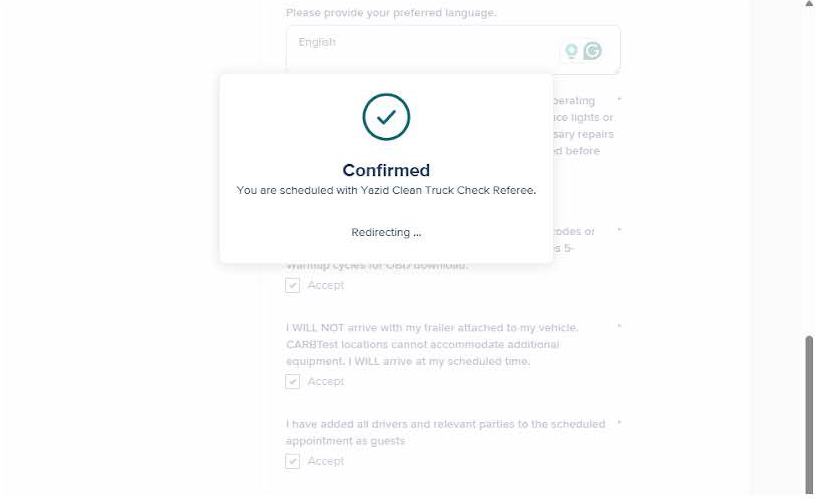
Screen 7 – Confirmation
-
You'll also be redirected to a confirmation page to help you prepare for your
appointment.
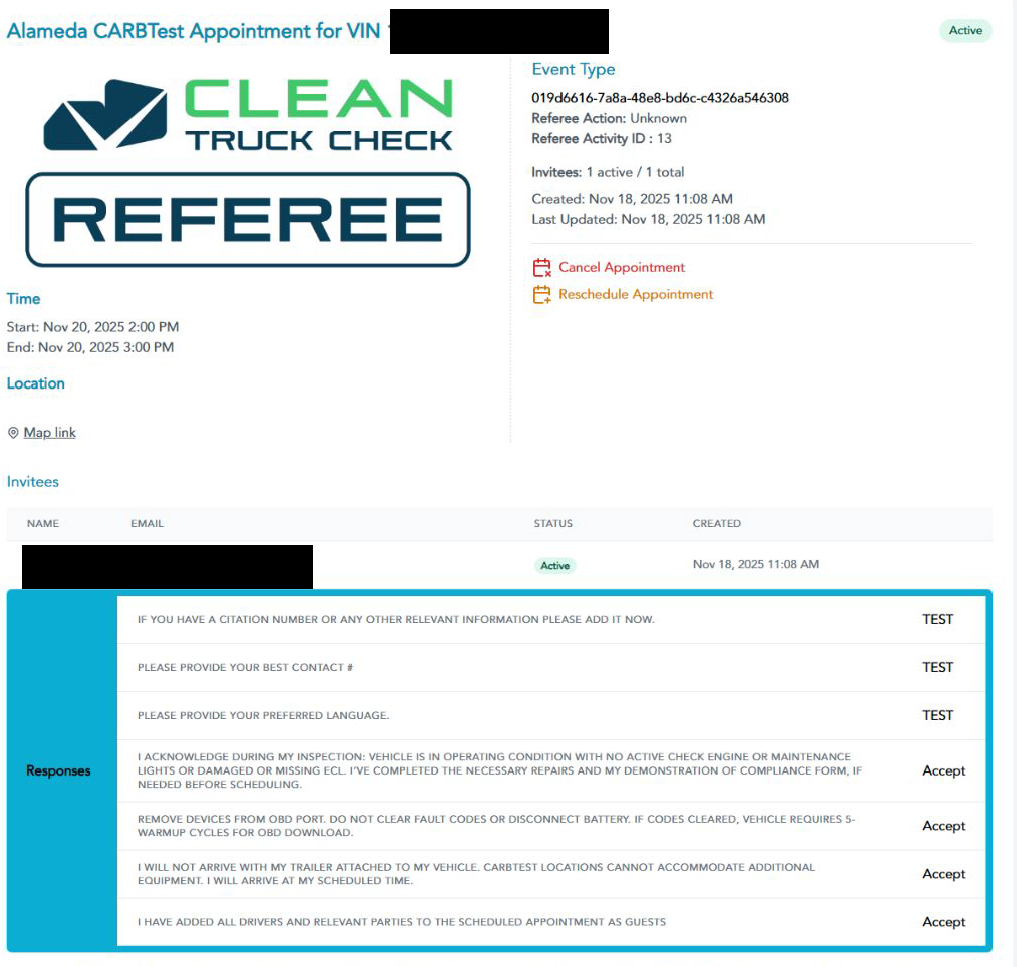
Confirmation Next Steps
- Please confirm your appointment by replying to your confirmation email. We look forward to seeing you at your Clean Truck Check Referee appointment.
-
If you have further questions related to your inspection, please contact us at
https://carbtest.org/contact
with your:
- Requested Action Type i.e., State-Directed, Alternative Fuel, Motor Home, etc.
-
Provide your:
- Form ID (the number listed on your vehicles page or forms submitted page)
- VIN
- Other vehicle information, such as Engine Family Number and Engine Serial # (if applicable)
- Citation # (if applicable)
- CTC VIS Entity ID from your https://cleantruckcheck.arb.ca.gov/ account, starting with the letter "E" (if applicable). If you received a "Referee Referral" message during OBD testing, which is categorized as State-Directed
- Reason or need for scheduling, please elaborate, so we can best answer your questions
If you haven't been Approved for an Appointment yet
PLEASE NOTE THAT APPOINTMENT REQUESTS ARE CONDUCTED ON THE CTC-VIS WEBSITE.
-
Visit
https://cleantruckcheck.arb.ca.gov/
and sign up if you are a new user.
- If you experience any account-related issues or have questions on the appointment request process, you may email hdim@arb.ca.gov
-
Add Vehicle:
- On the bottom left of your page, click "My Info", then under "Vehicles", to the right of the page, click "Actions" and "Add Vehicle".
-
Create an Action:
- At the top right, click the "Main Menu" button, then click "Forms", then click "Referee Appointment Request" to start the document upload, referee review, and scheduling process.
- For more information on how to request an appointment, you may watch this YouTube Video
Contact Information
| Type of Letter Received | Notice to Submit to Testing | Tampering Violation Complaint | General Compliance Questions |
|---|---|---|---|
| Department | Enforcement | Citations | CARB Heavy-Duty Inspection and Maintenance |
| Citation Number Example | HD-xxxxxx | Txxxxxxxxxxxxxx | N/A |
| Phone | (916) 229-0492 | (916) 322-8275 | (866) 634-3735 |
| HDVehicleEnforcement@arb.ca.gov | citations@arb.ca.gov | hdim@arb.ca.gov | |
| Website | Enforcement of Clean Truck Check HD I/M Regulation | Referee FactSheet-Clean Truck Check | https://cleantruckcheck.arb.ca.gov/ |